
How to Add Negative Keywords in Google Ads
- Published:2025-12-01
- Updated: 2025-12-18
How to Add Negative Keywords in Google Ads – Step-by-Step Guide
In Google Ads, the keywords you exclude can be just as important as the ones you bid on. You really need to know how to add negative keywords in Google Ads.
Negative keywords tell Google to ignore irrelevant searches so your ads appear only for people who are likely to convert. Without them, you will pay for clicks from bargain hunters, job seekers, or people who simply aren’t looking for what you offer.
This comprehensive guide explains exactly what negative keywords are, why they matter, and most importantly, how to add them to your Google Ads account, campaigns, and ad groups. Whether you are optimizing a standard Search campaign or navigating the new 2025 features for Performance Max, this guide will help you reduce wasted spend.
Contents
- 1. How to Add Negative Keywords in Google Ads
- 1.1. How to Add Negative Keywords in Google Ads – Step-by-Step Guide
- 1.2. What Are Negative Keywords?
- 1.3. Benefits of Using Negative Keywords
- 1.4. How to Add Negative Keywords in Google Ads – Choosing the Right Match Type
- 1.5. How to Add Negative Keywords in Google Ads – Finding and Identifying Them
- 1.6. How to Add Negative Keywords in Google Ads – Step-by-Step
- 1.6.1. How to Add Negative Keywords in Google Ads at the Account Level
- 1.6.2. How to Add Negative Keywords in Google Ads at the Campaign Level
- 1.6.3. How to Add Negative Keywords in Google Ads at the Ad Group Level
- 1.6.4. How to Add Negative Keyword Lists in Google Ads
- 1.6.5. Editing or removing negative keywords
- 1.7. How to Add Negative Keywords in Google Ads – Performance Max and Shopping Campaigns
- 1.8. How to Add Negative Keywords in Google Ads – Building and Using Lists
- 1.9. How to Add Negative Keywords in Google Ads – Best Practices and Tips
- 1.10. How to Add Negative Keywords in Google Ads – Examples & Templates
- 1.11. How to Add Negative Keywords in Google Ads – Conclusion
- 1.12. FAQ: Top 10 Google Ads Keyword Match Types Questions Answered
- 1.12.1. What are negative keywords and how to add negative keywords in Google Ads?
- 1.12.2. How to add negative keywords in Google Ads for a Performance Max campaign?
- 1.12.3. How do I create a negative keyword list and add negative keywords in Google Ads?
- 1.12.4. Is $10 or $20 per day enough and how to add negative keywords in Google Ads on a tight budget?
- 1.12.5. What match types affect how to add negative keywords in Google Ads?
- 1.12.6. How often should I update my lists when I add negative keywords in Google Ads?
- 1.12.7. Where can I find tools to help add negative keywords in Google Ads?
- 1.12.8. How to add negative keywords in Google Ads without harming positive keywords?
- 1.12.9. Daniel Ostrzyzek
- 1.13. Let's Talk!
What Are Negative Keywords?
Negative keywords are a specific match type that prevents your ad from being triggered by a certain word or phrase. While positive keywords tell Google what you do want to rank for, negative keywords tell Google what you don’t want.
By acting as a filter, they ensure your budget is focused solely on high-intent searches.
Real-World Example
Imagine you sell high-end luxury shoes. You want to bid on terms like „leather boots” or „designer heels.”
However, you do not want your ads appearing for users searching for „cheap shoes,” „free shoes,” or „shoe repair.” By adding „cheap,” „free,” and „repair” as negative keywords, you ensure your ads stay hidden from users looking for a bargain or service you don’t provide.
Benefits of Using Negative Keywords
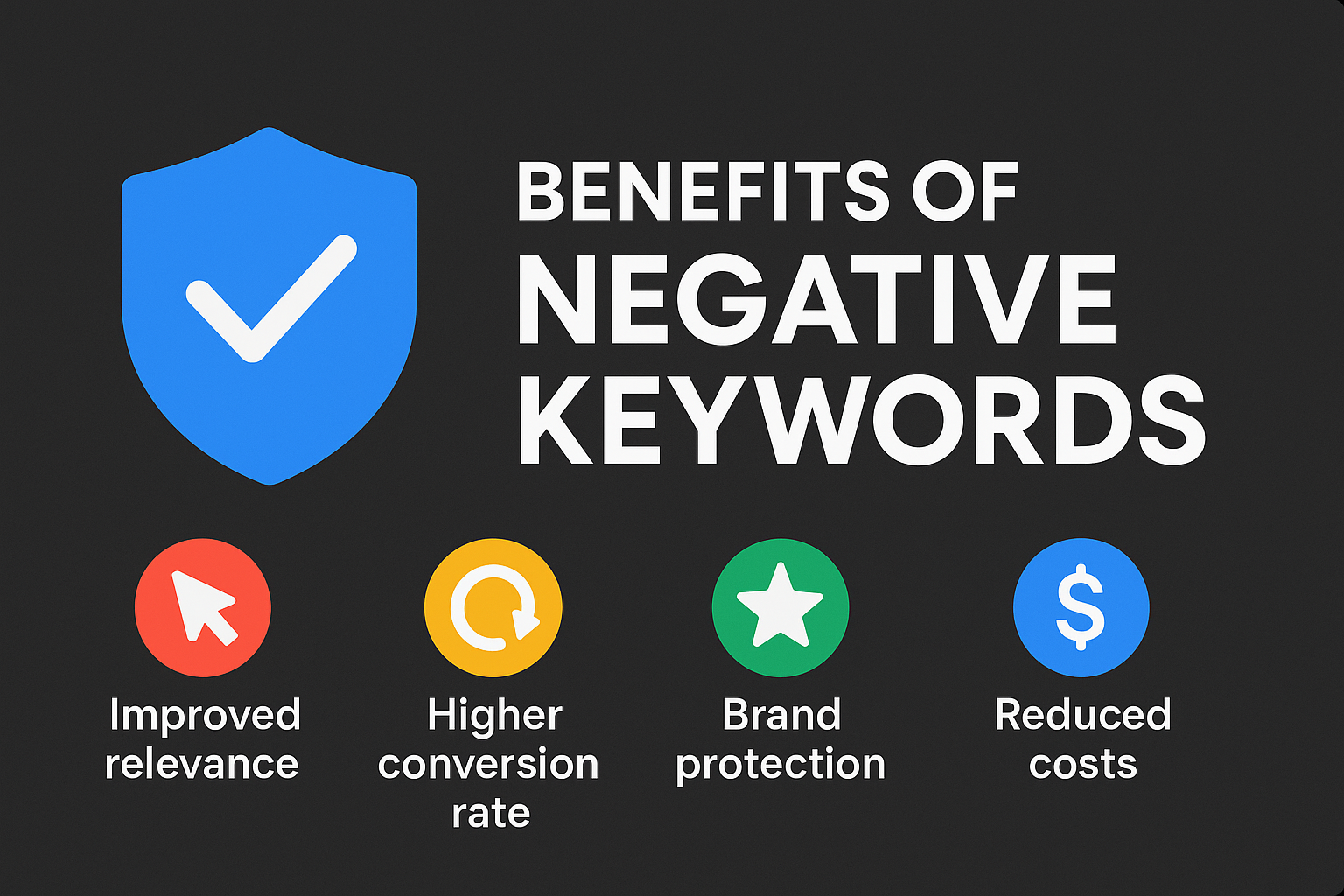
Implementing a robust negative keyword strategy is one of the fastest ways to improve the health of your account. Here is why they are essential:
- Improved Relevance and CTR: By filtering out unwanted impressions, your ads only appear to users searching for exactly what you offer. This naturally increases your Click-Through Rate (CTR) because your ad copy closely matches the user’s intent.
- Higher Conversion Rate and ROAS: When you stop paying for irrelevant traffic—like people looking for „free” items or „jobs”—you stop wasting budget on clicks that will never convert. This directly improves your Return on Ad Spend (ROAS).
- Brand Protection and Quality Score: High relevance signals to Google that your ads are useful. This can improve your Quality Score, which often leads to lower costs per click and better ad positions. It also protects your brand from appearing against search terms that don’t align with your positioning.
- Budget Efficiency and Waste Reduction The most immediate impact of adding negative keywords is financial. Every time someone clicks on your ad for an irrelevant search, they are spending money that could have been used to acquire a real customer. In Google Ads, this is known as „wasted spend.” Negative keywords are your primary defense against it.
- The Math of Wasted Spend Consider this scenario: You have a daily budget of $50, and your average Cost Per Click (CPC) is $2.50. This means you can afford roughly 20 clicks per day.
- Without Negative Keywords: If 5 of those clicks are for „free” versions of your product or „jobs” at your company, you have wasted $12.50—or 25% of your daily budget—on traffic that will never convert.
- With Negative Keywords: By blocking those 5 irrelevant searches, your budget remains available. Google is forced to find 5 other users who are actually searching for your product, effectively increasing your conversion volume without increasing your budget.
- Lowering Your Cost Per Acquisition (CPA): Ultimately, waste reduction lowers your Cost Per Acquisition (CPA). When you filter out the „junk” traffic, your total spend decreases (or stays efficient) while your conversion numbers hold steady or rise. This directly improves your Return on Ad Spend (ROAS), allowing you to scale your campaigns profitably.
How to Add Negative Keywords in Google Ads – Choosing the Right Match Type
Selecting the correct match type is just as critical as the keyword itself. If you are too restrictive, you might block good customers. If you are too loose, you might not block enough bad traffic.
Unlike positive keywords, negative keywords do not match close variants. If you exclude „shoe,” Google will not automatically exclude „shoes.” You often need to add both singular and plural versions.
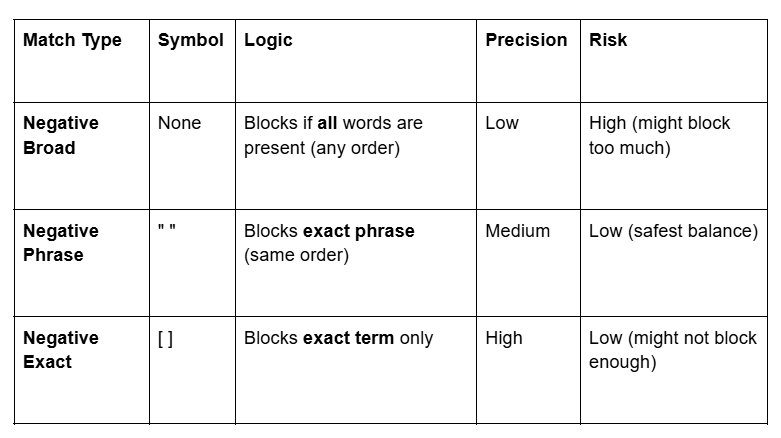
Broad match negative keywords
This is the default setting for all negative keywords.
- How it works: Your ad will not show if the search contains all of your negative keyword terms, regardless of the order.
- Example: Negative keyword: running shoes
- Blocks: running shoes, shoes running, best running shoes
- Allows: blue tennis shoes (missing „running”), running gear (missing „shoes”)
- When to use it: Use this for broad topics you want to avoid entirely, but be careful—it cuts the widest path.
Phrase match negative keywords
This match type offers a middle ground between precision and reach.
- How it works: Your ad will not show if the search contains the exact keyword terms in the same order. It allows for extra words before or after the phrase.
- Symbol: „keyword” (quotes)
- Example: Negative keyword: „running shoes”
- Blocks: blue running shoes, running shoes cheap
- Allows: shoes for running (because the word order is broken), running gym shoes (because „gym” breaks the phrase)
- Blocks: blue running shoes, running shoes cheap
- When to use it: This is ideal for blocking specific concepts, like „free download” or „customer service,” where the order of words changes the meaning.
Exact match negative keywords
This is the most precise match type.
- How it works: Your ad will not show only if the search is the exact negative keyword and nothing else.
- Symbol: [keyword] (brackets)
- Example: Negative keyword: [running shoes]
- Blocks: running shoes
- Allows: blue running shoes, buy running shoes
- When to use it: Use this when you want to block a specific term but keep the long-tail variations. For example, you might want to block the generic search „[shoes]” (too vague) but keep „red leather shoes” (high intent).
Summary comparison of match types
How to Add Negative Keywords in Google Ads – Finding and Identifying Them
You can’t block what you don’t know about. Here is how to find the terms that are draining your budget.
Using search-term reports and tools
The Search Terms Report is the single most valuable tool in Google Ads. It shows you the actual queries users typed into Google to trigger your ads (as opposed to the keywords you bid on).
- Navigate to Insights and reports > Search terms.
- Sort the data by Cost or Impressions.
- Look for terms with high spend but zero conversions.
- Select these terms and add them as negatives directly from the interface.
Tool Tip: You can also use the Google Keyword Planner to find negatives. Type in your main product name, and scan the results for irrelevant suggestions. If you sell „CRM software,” and Google suggests „CRM jobs,” add „jobs” to your negative list immediately.
Manual brainstorming and competitor analysis
Put yourself in the customer’s shoes. What might they search for that sounds similar to your product but has the wrong intent?
- Informational Intent: Words like review, rating, definition, what is, DIY, tutorial.
- Bargain Hunting: Words like free, cheap, clearance, liquidation, used, second-hand.
- Competitor Analysis: Search for your own keywords. If you see ads for competitors who offer a completely different price point or service level (e.g., a luxury brand vs. a discount brand), consider adding their brand names as negative keywords to avoid paying for their brand loyalists.
Prioritizing high-impact negatives
You do not need to add every possible negative keyword at once. Use the 80/20 rule:
- Focus on the top 20% of bad keywords that are causing 80% of your wasted spend.
- Prioritize terms with high impressions and low CTR (Click-Through Rate). These drag down your Quality Score.
- Prioritize terms with high clicks and zero conversions. These drain your wallet.
Ongoing monitoring
Search trends change. A term that wasn’t popular last month might spike this month (e.g., a new viral meme or a news event).
- Weekly Check: If you are spending over $50/day, check your Search Terms report once a week.
- Monthly Check: For smaller budgets, a monthly „negative keyword sweep” is usually sufficient.
- Seasonal Check: Before big holidays (like Black Friday), add negatives for terms like „discount” or „sale” if you aren’t running a promotion, to avoid disappointed clickers.
How to Add Negative Keywords in Google Ads – Step-by-Step
You can apply negative keywords at three different levels of your account hierarchy. Understanding the difference is crucial for effective account management.
How to Add Negative Keywords in Google Ads at the Account Level
Account-level negative keywords are a powerful feature introduced to help you enforce global exclusions across all campaigns, including Search, Shopping, and Performance Max. This is the best place to add universal „bad” words like „scam” or „movie” that apply to your entire business.
- Navigate to the Account Settings section of your Google Ads account.
- Locate the Negative keywords setting.
- Click the plus button (+) to add new keywords.
- Enter your negative keywords. Note that there is a limit of 1,000 negative keywords allowed at the account level.
- Click Save.
Warning: Be very careful here. Adding a broad match negative at the account level will block that traffic for every single campaign you run.
How to Add Negative Keywords in Google Ads at the Campaign Level
This is the most common level for applying negative keywords. It allows you to shape traffic for specific campaign goals without affecting others. For example, you might want to exclude „running shoes” from your „Formal Shoes” campaign, but you still want to bid on it in your „Athletic” campaign.
- Click the Campaigns icon in the left-hand menu.
- Navigate to Audiences, keywords, and content in the section menu.
- Click Search keywords.
- Select the Negative search keywords tab at the top of the page.
- Click the blue plus button (+).
- Choose Add negative keywords or create new list.
- Select Use campaign settings and choose the specific campaign you want to apply the negatives to.
- Enter your keywords (one per line) and ensure you do not overlap with your positive keywords.
- Click Save.
How to Add Negative Keywords in Google Ads at the Ad Group Level
Ad group exclusions are for fine-tuning. If you have two ad groups in the same campaign—one for „Red Shoes” and one for „Blue Shoes”—you would add „blue” as a negative keyword in the „Red Shoes” ad group to prevent cross-contamination.
- Follow the same navigation steps as above: Campaigns icon > Audiences, keywords, and content > Search keywords > Negative search keywords tab.
- Click the blue plus button (+).
- Instead of „Campaign,” select Add to: Ad Group.
- Choose the specific ad group you wish to edit.
- Enter your keywords and click Save.
How to Add Negative Keyword Lists in Google Ads
Managing thousands of keywords manually is inefficient. Negative keyword lists allow you to create a single list of exclusions and apply it to multiple campaigns at once. When you update the list, every campaign using it is updated automatically.
- Click the Tools icon (wrench) in the top navigation.
- Navigate to the Shared Library.
- Select Negative keyword lists.
- Click the blue plus button (+) to create a new list.
- Name your list (e.g., „Universal Negatives” or „Competitors”).
- Enter your negative terms (one per line).
- Click Save.
- To use the list, check the box next to your new list name, click Apply to campaigns, and select the relevant campaigns.
Editing or removing negative keywords
If you accidentally block a valuable term, you can easily reverse it.
- Navigate back to the Negative search keywords tab in your campaign or ad group.
- Check the box next to the negative keyword you want to modify.
- Click Edit to change the text or match type, or click Remove to delete it entirely from the list.
How to Add Negative Keywords in Google Ads – Performance Max and Shopping Campaigns
Adding negative keywords to standard Search campaigns is straightforward, but automated campaign types like Performance Max (PMax) and Shopping operate differently. Here is how to handle them in the current 2025 interface.
Performance Max (PMax) Campaign Considerations
Performance Max relies heavily on automation, which historically made it difficult to control. However, recent updates have given advertisers more power to steer these campaigns.
- Account-Level Exclusions: The most effective way to block traffic from PMax is using Account-Level Negative Keywords. Any keyword added here automatically applies to all PMax campaigns. This is ideal for brand safety exclusions (e.g., blocking „scam” or specific controversial terms).
- Campaign-Level Negatives (New Feature): You can now apply negative keyword lists specifically to Performance Max campaigns. This allows you to prevent PMax from cannibalizing your branded search traffic or wasting budget on terms you know do not convert, without affecting your entire account.
- Brand Exclusions: If you want PMax to avoid bidding on your own brand name (to keep that traffic for a Standard Search campaign), you must use a „Brand Exclusion List” within the campaign settings, which functions similarly to a negative keyword list but is specific to brand identity.
Shopping Campaign Steps
In Shopping campaigns, you cannot bid on positive keywords; Google uses your product feed data to trigger ads. Because you lack positive keyword control, negative keywords are your only lever to filter traffic.
- Select your Shopping Campaign: Go to the campaign where you want to add exclusions.
- Navigate to Keywords: Click on Audiences, keywords, and content > Negative search keywords.
- Add Product-Specific Negatives: Because Shopping ads are visual, users often search for specific features. If you sell „leather furniture,” add negatives for materials you don’t sell, like „microfiber,” „fabric,” or „vinyl,” to prevent mismatched intent.
How to Add Negative Keywords in Google Ads – Building and Using Lists
Creating a negative keyword list is more efficient than adding keywords manually to every new campaign. Lists allow you to apply the same set of „bad” keywords across multiple campaigns instantly.
Universal Negative Keywords
These are words that are almost never relevant to a business focused on sales. Regardless of your industry, you likely want to exclude these „junk” terms to save budget.
- „Free” seekers: free, open source, torrent, crack, hack.
- Job seekers: jobs, hiring, internship, resume, salary, occupation.
- Education seekers: tutorial, course, training, definition, what is, diagram.
Industry-Specific Lists
Beyond universal terms, you should build lists specific to your business model.
- B2B Service Providers: Exclude DIY terms like „how to,” „templates,” „sample,” or „generator” to avoid users looking to do the work themselves rather than hire you.
- Luxury/High-End Retail: Exclude price-sensitive terms like „cheap,” „discount,” „clearance,” „liquidation,” or „wholesale” to filter out bargain hunters.
- E-commerce: If you sell new products only, exclude „used,” „refurbished,” „second hand,” and „rental.”
Competitor and Brand Name Exclusions
Deciding whether to bid on or exclude competitor names is a strategic choice.
- When to Exclude: If you have a limited budget (e.g., $10-$20/day) or a low conversion rate on competitor traffic, add competitor brand names to a negative list. This ensures your budget is focused solely on people looking for your brand or generic solutions.
- How to Organize: Create a separate list named „Competitors” in your Shared Library so you can easily apply or remove it from campaigns as your strategy changes.
Downloadable Template Overview
To help you get started immediately, we recommend creating a spreadsheet organized by these categories. You can copy-paste these directly into your Google Ads Shared Library.
- Column A: Universal Negatives (movie, scam, spam)
- Column B: Informational Qualifiers (review, rating, blog, about)
- Column C: Price Qualifiers (cheap, free, quote)
- Column D: Employment Terms (career, work, staff)
How to Add Negative Keywords in Google Ads – Best Practices and Tips
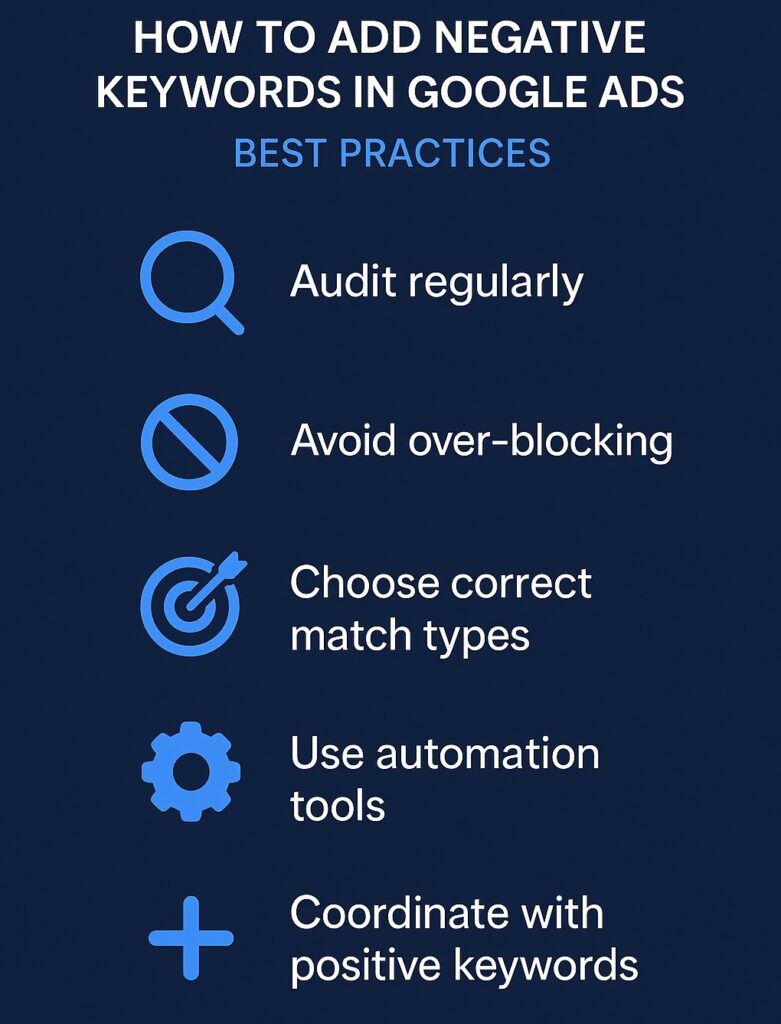
Adding negative keywords is not a „set it and forget it” task. To keep your account healthy, follow these best practices.
1. Audit and Update Lists Regularly
Search trends change. A term that wasn’t popular last month might spike this month.
- Routine Check: If you spend over $50/day, review your Search Terms Report weekly.
- Look for „Close” but „No”: You might see terms that look relevant but never convert. If „luxury leather boots” has 100 clicks and 0 sales, it might be time to add it as a negative (or check your pricing).
2. Avoiding Over-Blocking
This is the most common mistake beginners make. They use Broad Match negatives too aggressively and accidentally block good customers.
- The „Gluten-Free” Trap: If you sell „Gluten-Free Bread” and you add „free” as a Broad Match negative (to block „free bread”), you will accidentally block your own main keyword „gluten free”.
- The Fix: Use Phrase Match („free”) or Exact Match ([free]) for terms that might be part of a valuable phrase.
3. Choosing the Correct Match Type
Always default to the most precise match type that gets the job done.
- Broad Match Negative: Use only for concepts you never want (e.g., movies,torrent).
- Phrase Match Negative: Use for specific phrases where word order matters (e.g., „customer service”).
- Exact Match Negative: Use for precise traffic sculpting (e.g., [running shoes] to force traffic to a more specific ad group).
4. Automation Tools and Scripts
For large accounts, doing this manually is impossible.
- N-Gram Scripts: These represent a popular automation method. An N-Gram script breaks down search queries into single words (unigrams) or phrases (bigrams) to see which specific words appear most often in wasted spend.
- Zero-Conversion Rules: You can set an automated rule to email you if a search term has >50 clicks and 0 conversions, flagging it for review.
5. Coordinating with Positive Keyword Strategies
Ensure your negative keywords don’t conflict with your positive ones.
- Traffic Sculpting: If you have a „General” campaign (Broad Match) and a „High Intent” campaign (Exact Match), add your Exact Match keywords as negatives in the General campaign. This forces Google to show the specific ad for the specific search, rather than the generic one.
How to Add Negative Keywords in Google Ads – Examples & Templates
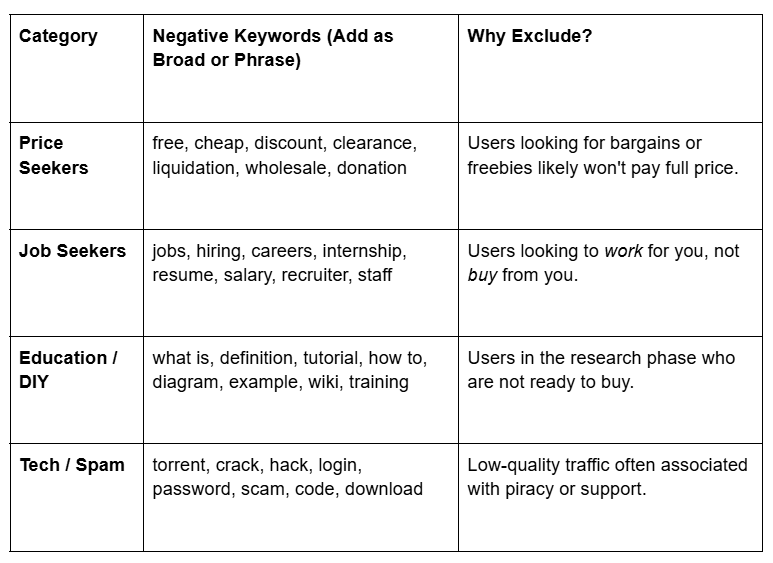
To help you build your lists faster, here are categorized examples you can copy and paste directly into your Shared Library.
Universal Negatives Table
These terms are generally „unsafe” for most ROI-focused campaigns.
Industry-Specific Examples
- For B2B Services (e.g., Software, Consulting)
- Exclude: template, generator, free tool, sample, DIY, student, university, association.
- Reason: You want decision-makers with a budget, not students or people looking for a „free template.”
- For Ecommerce (Retail)
- Exclude: used, second hand, rental, repair, parts, amazon, ebay, craigslist.
- Reason: If you sell new products, exclude users looking for used items or marketplaces where you don’t sell.
- For Luxury Brands
- Exclude: cheap, affordable, budget, low cost, discount, outlet.
- Reason: Protect your brand equity and avoid paying for clicks from users who can’t afford your product.
Template Instructions: How to Use These Lists
- Copy the list of words above that apply to your business.
- Open Google Ads > Tools > Shared Library > Negative keyword lists.
- Click the Plus (+) button.
- Name your list (e.g., „Universal Negatives”).
- Paste the keywords into the text box.
- Click Save and apply to your campaigns.
Here is the conclusion for your blog post, wrapping up the guide with actionable next steps.
How to Add Negative Keywords in Google Ads – Conclusion
Mastering how to add negative keywords in Google Ads is one of the most effective ways to turn a struggling campaign into a profitable one. By filtering out irrelevant traffic, you stop paying for clicks that don’t convert and ensure your budget is focused entirely on your ideal customers.
Key Takeaways
- Stop Wasted Spend: Negative keywords act as a shield for your budget, blocking bargain hunters, job seekers, and informational searchers who aren’t ready to buy.
- Control Your Traffic: Using the right match types (Broad, Phrase, and Exact) allows you to „sculpt” your traffic, ensuring specific ads show for specific queries.
- ** Leverage 2025 Updates:** Don’t forget to utilize new features like account-level negatives and campaign-level exclusions for Performance Max to keep your automation in check.
Start Refining Your Account Today
You don’t need to overhaul your entire account overnight. Start small. Open your Search Terms Report today and identify just five terms that are wasting your money. Adding just a few strategic negative keywords can have an immediate impact on your Click-Through Rate (CTR) and Return on Ad Spend (ROAS).
FAQ: Top 10 Google Ads Keyword Match Types Questions Answered
What are negative keywords and how to add negative keywords in Google Ads?
Negative keywords are terms that prevent your ad from being triggered by irrelevant search queries. They help you filter out traffic that is unlikely to convert, such as users looking for „free” items or „jobs”. To add them, navigate to Keywords > Negative Keywords in your Google Ads account and click the plus button to add terms at the account, campaign, or ad group level.
How to add negative keywords in Google Ads for a Performance Max campaign?
With the latest 2025 updates, you have two main options for Performance Max (PMax). You can add Account-level negative keywords in your account settings, which apply to all campaigns including PMax. Additionally, you can now add campaign-level negative keywords specifically to Performance Max campaigns to better steer automation and exclude specific traffic without affecting your entire account.
How do I create a negative keyword list and add negative keywords in Google Ads?
To create a reusable list, go to Tools > Shared Library > Negative keyword lists. Click the plus button, name your list (e.g., „Competitor Brands”), and paste your keywords. Once saved, you can apply this list to multiple campaigns at once, which is much faster than adding keywords manually to each campaign.
Is $10 or $20 per day enough and how to add negative keywords in Google Ads on a tight budget?
Yes, a budget of $10 or $20 per day can be sufficient if you manage it strictly. When working with a limited budget, learning how to add negative keywords is critical to ensure you don’t waste money on irrelevant clicks. By aggressively excluding broad or low-intent terms, you focus your entire daily spend on high-quality prospects, making a small budget perform like a larger one.
What match types affect how to add negative keywords in Google Ads?
There are three match types: broad, phrase, and exact. When you add negative keywords, the default is broad match, which blocks queries containing all your terms in any order. Phrase match blocks the exact sequence of words, and exact match blocks only that specific term. Choosing the right type is essential to avoid blocking relevant traffic.
How often should I update my lists when I add negative keywords in Google Ads?
You should review your Search Terms Report regularly to identify new waste. For high-volume accounts, a weekly review is recommended. For smaller accounts, checking once a month is usually sufficient. Regular auditing ensures you catch new irrelevant trends before they drain your budget.
Where can I find tools to help add negative keywords in Google Ads?
The primary tool is the internal Search Terms Report within Google Ads. You can also use the Google Keyword Planner to find related terms to exclude. Third-party tools like Semrush, WordStream, and Optmyzr also offer features to help identify negative keywords and manage lists efficiently.
How to add negative keywords in Google Ads without harming positive keywords?
When adding negatives, Google will often warn you if a negative keyword conflicts with a positive keyword you are bidding on. To avoid harm, be careful with broad match negatives, as they can inadvertently block relevant variations. Always check your „conflicting negative keywords” notifications to ensure you aren’t blocking your own ads.

Daniel Ostrzyzek
Hi, I’m Daniel Ostrzyzek, a passionate Google Ads specialist with over 8 years of experience. I work with small to medium-sized businesses to help them attract leads, achieve their growth goals, and maximize ROI through Google Ads campaigns. After discovering my passion for digital marketing, I dove deep into Google Ads. Over the years, I’ve gained valuable experience working with businesses across various industries. I specialize in Google Ads Search and lead generation campaigns, helping my clients maximize the results of their online advertising.

Let's Talk!
I’m here to help you grow your business with the power of Google Ads. If you’re ready to take your campaigns to the next level – Schedule My Free Consultation